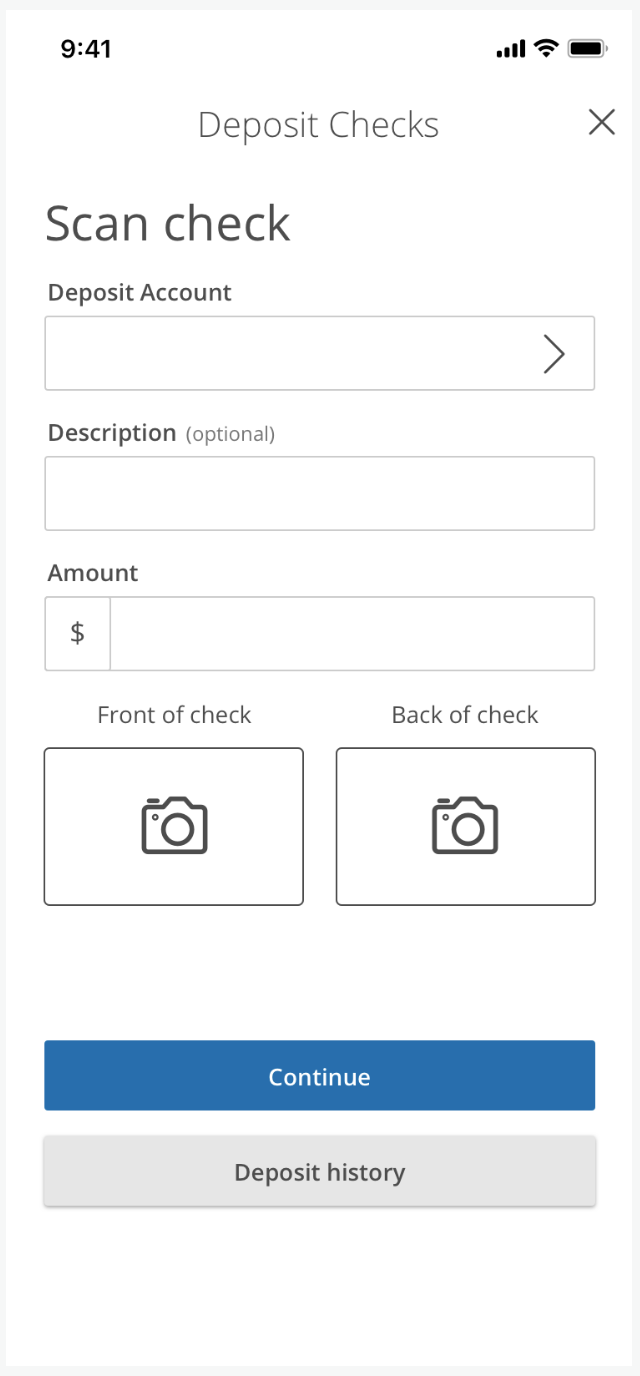
Multiple Check Deposit Workflow
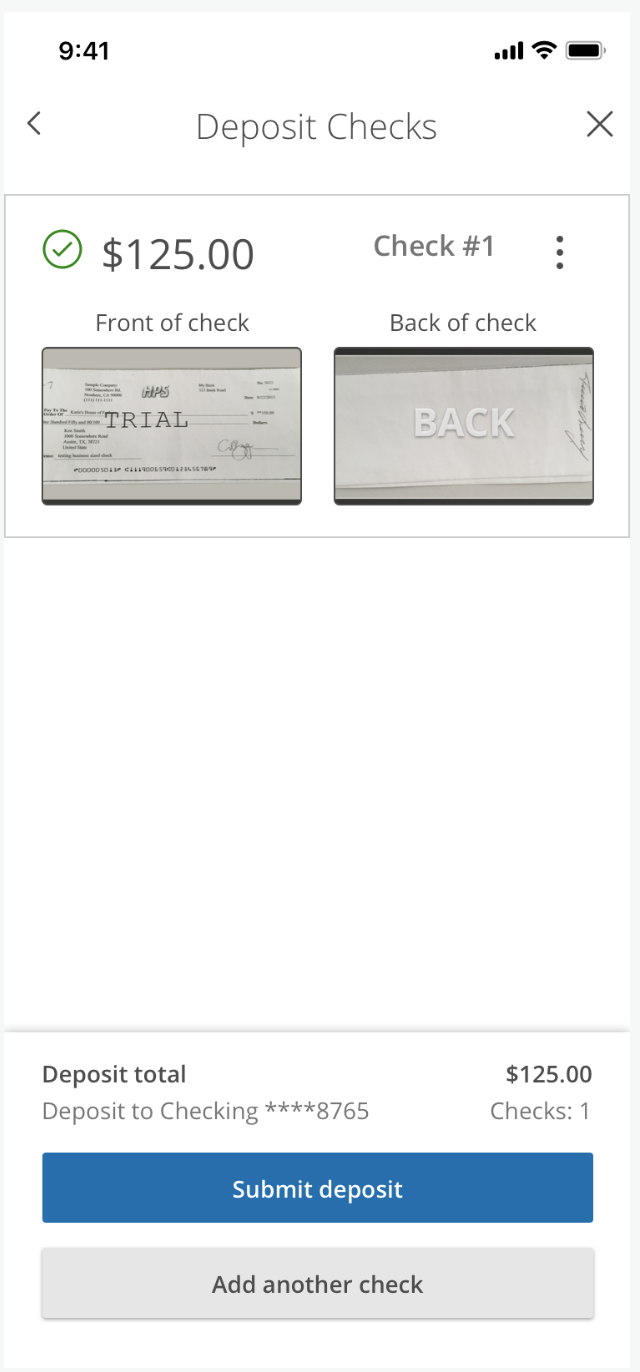
Multiple Check deposit screen
Problem Statement: Users are unable to deposit multiple checks in a single workflow
When I was added to this project we had established a workflow for an online check deposit but it capped out at a single check. We began to hear from users that needed to deposit multiple checks at a single time so a new workflow was needed.
Through research we also discovered that users wanted to see their checks as they deposited them to make sure everything worked as it should. I included the addition of check images on the Submit Deposit screen with icons that quickly showed if everything worked properly. There were three states, a successful state, a soft error and a hard error. These had to be handled differently, as the soft error could progress while the hard error would result in an inability to deposit the check in question.
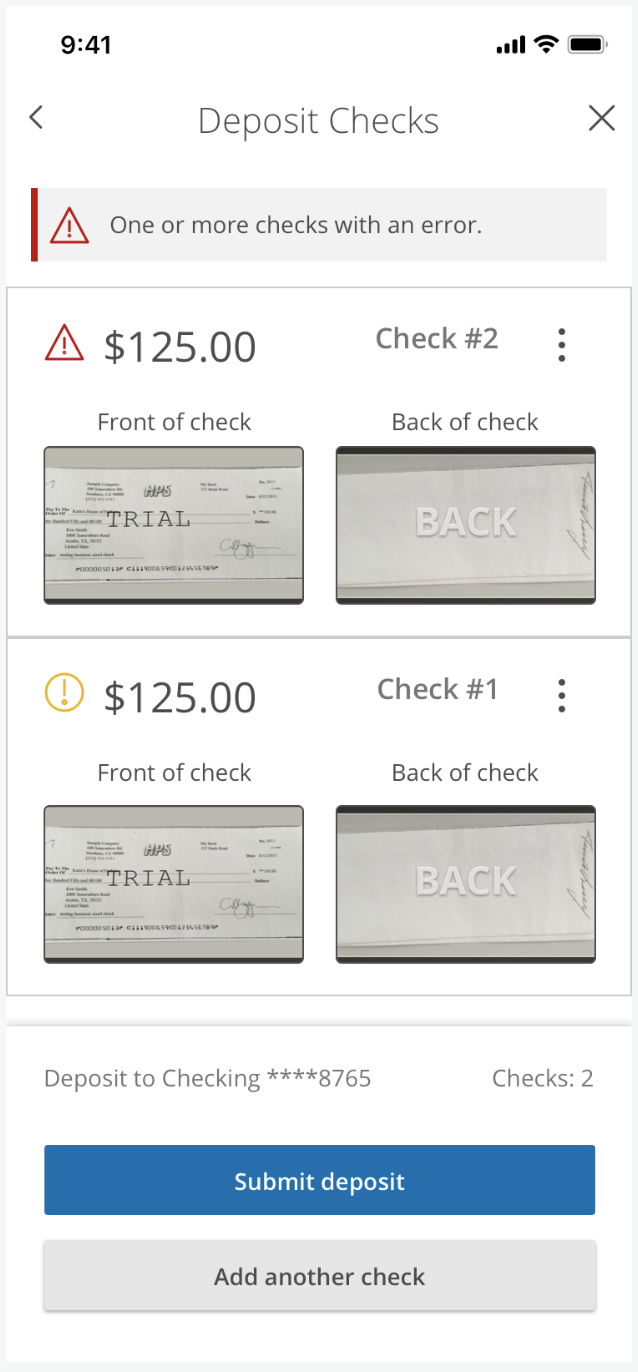
An example of two checks being deposited, one with a hard error and one with a soft error.
The Deposit Solution
This new workflow now opened in a modal view which could be canceled if needed. Users would be able to enter the check details, scan the front and back of the check, and then see an image of their check with a Submit Deposit button below. However, now there was the addition of another button, the Add Another Check button. Users could at this point decide if they were finished with their check deposit workflow or simply press the Add Another Check button to continue to add more checks to their deposit. It was a simple solution but oftentimes the simple solutions are the most friendly and intuitive.
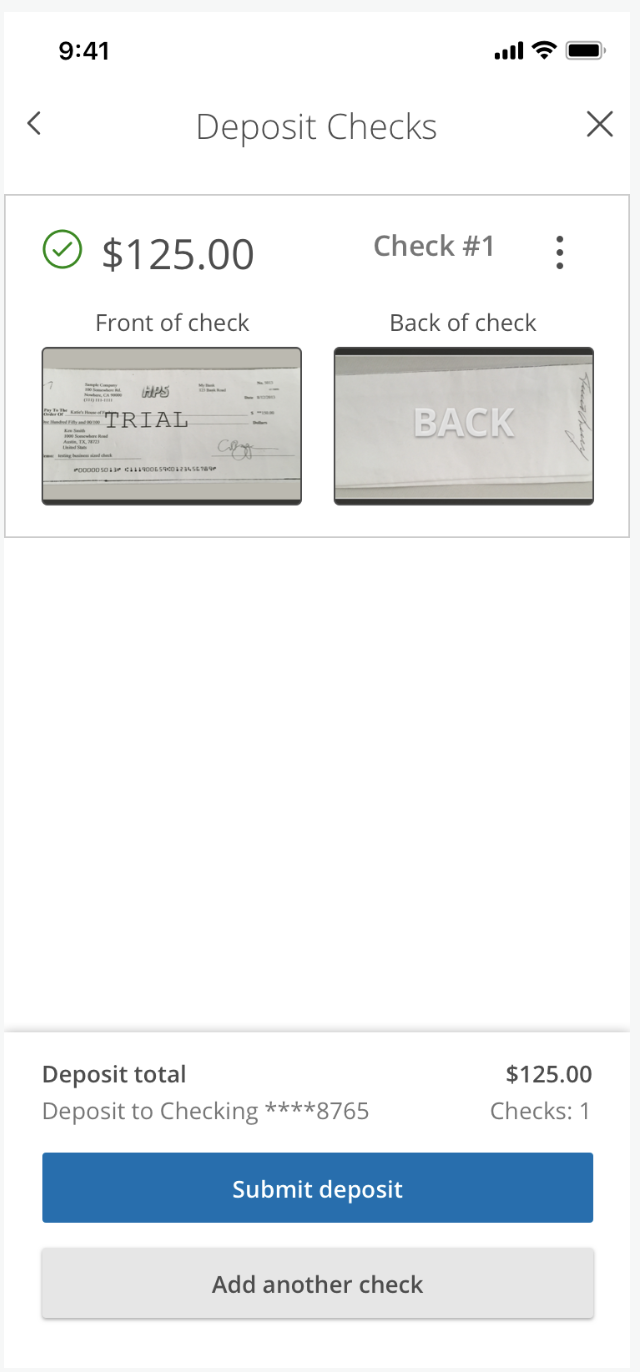
Image showing the Add Another Check button.
Final Thoughts
If the user ever ran into a problem with one of their checks they could use the three dots menu (which we called a kebob menu internally) to go back and edit that check. They could repeat a single deposit flow as needed as often as required to ensure the entire stack of checks was completed. With help from the engineering team, I designed a variety of error states that could be encountered.
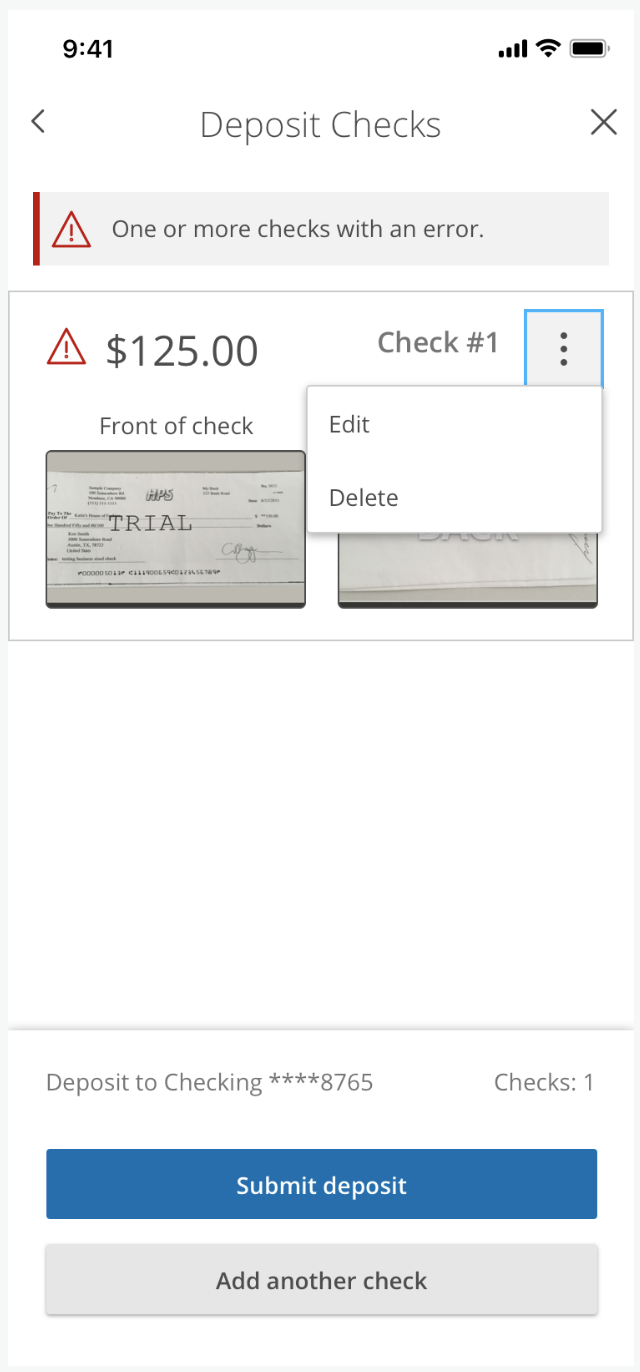
The three dots menu with an editable option.
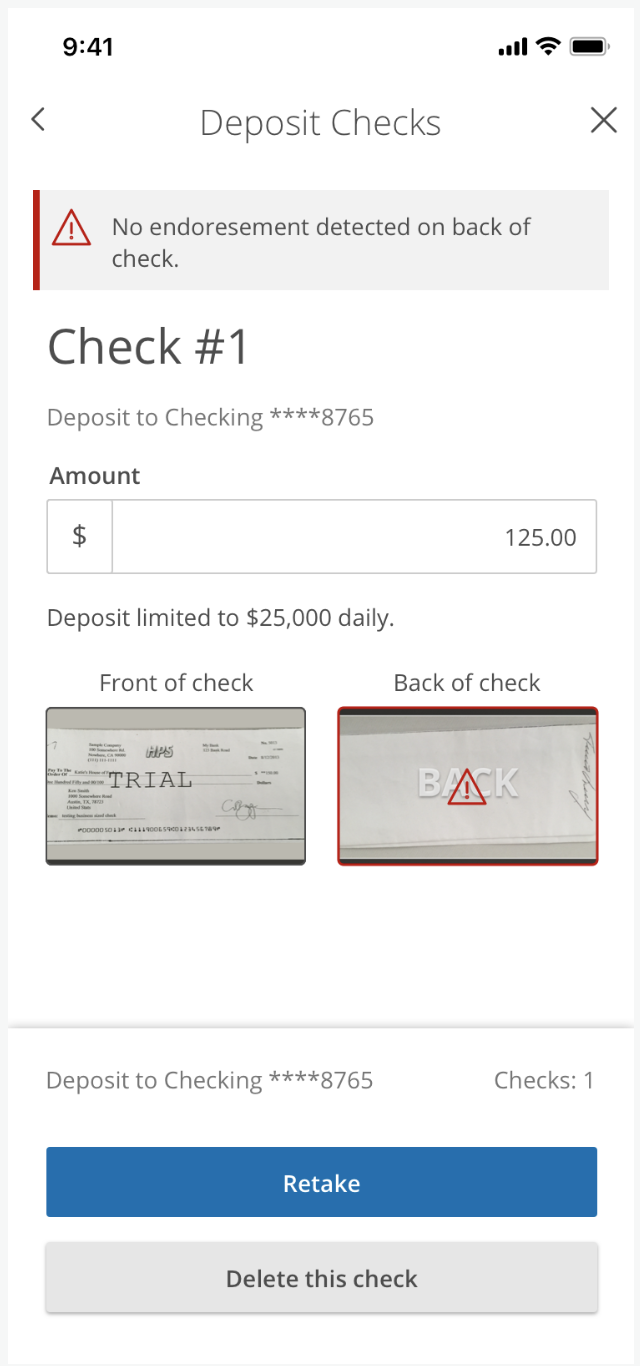
A detailed view of the errored check and the option to retake the image scan.